🛡️ Backup Master Pro
cPanel Backup Solutions

cPanel & WHM Complete Backup Guide
Platform: cPanel & WHM Control Panel
Market Share: Used by 70%+ of shared hosting providers
Version: cPanel 11.86+ supports modern backup features
What is cPanel?
cPanel is the world's most popular web hosting control panel, providing a graphical interface and automation tools to simplify website management. Over 70% of shared hosting providers use cPanel, making it the de facto standard for website hosting management. cPanel includes built-in backup functionality, but understanding its limitations and enhancements is crucial for proper data protection.
cPanel Backup Options Overview
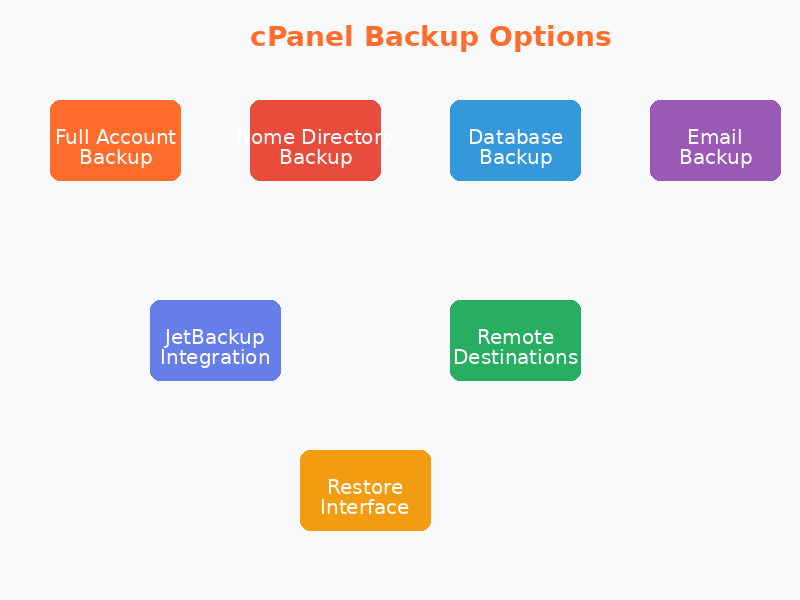
Built-in cPanel Backup Features
📦 Full Account Backup
Complete backup of entire cPanel account including all files, databases, email accounts, forwarders, and filters. Creates .tar.gz archive.
🏠 Home Directory Backup
Backs up all files in your home directory including website files, configuration files, and private files. Excludes databases.
🗄️ Database Backups
Individual MySQL or PostgreSQL database backups via PHPMyAdmin. Creates SQL dump files for restoration.
📧 Email Account Backups
Backup individual email accounts or all email for a domain. Includes messages, folders, and filters.
📂 Email Forwarders & Filters
Separate backup option for email forwarders and filtering rules. Important for preserving email workflows.
⚙️ Manual Download
All cPanel backups must be manually downloaded to your local computer. Not stored remotely by default.
Native cPanel Backup Limitations
- ⚠️ Manual Process: Must initiate backups manually - no automated scheduling in standard cPanel
- ⚠️ Local Storage Only: Backups saved to server temporarily, must download to safe location
- ⚠️ Server Storage Limits: Large accounts may exceed available disk space during backup
- ⚠️ No Retention Management: Old backups aren't automatically cleaned up
- ⚠️ Limited Restoration: Must manually upload and extract files for restoration
- ⚠️ No Incremental Backups: Always full backups - inefficient for large accounts
- ⚠️ No Remote Destinations: Cannot automatically send to S3, Dropbox, etc.
- ⚠️ Single Point of Failure: Backups on same server as live data
WHM Backup Configuration (Server Level)
For server administrators with WHM (Web Host Manager) access, cPanel offers more advanced backup options:
WHM Backup Configuration Features
- Scheduled Backups: Configure daily, weekly, or monthly backup schedules for all accounts
- Remote Destinations: Send backups to FTP, SSH/SFTP, WebDAV, or S3-compatible storage
- Retention Policy: Automatically delete backups older than specified days/weeks
- Backup Compression: Choose compression level (gzip, bzip2) vs speed trade-off
- Incremental Backups: Available in cPanel 11.86+ - only backup changed files
- Backup Logs: Detailed logs of backup operations, successes, and failures
- Account Selection: Choose which accounts to backup or skip suspended accounts
- Backup Queue: Manage backup operations and monitor progress
JetBackup Integration
JetBackup is the most popular third-party backup solution for cPanel servers, offering enterprise-grade features that native cPanel backups lack:
🎯 User-Friendly Interface
Integrated directly into cPanel interface. Users can restore files themselves without contacting support.
📈 Incremental Backups
Only backup changed files, dramatically reducing backup time and storage requirements.
☁️ Cloud Integration
Native support for Amazon S3, Google Cloud, Dropbox, and 15+ cloud storage providers.
🔄 Automated Scheduling
Set custom backup frequencies: hourly, every 4 hours, daily, weekly, monthly.
📊 Multi-Tier Retention
Keep different numbers of backups per schedule: 7 daily, 4 weekly, 12 monthly.
⚡ Queue Management
Intelligent backup queue prevents server overload during backup operations.
🔍 File-Level Browse
Browse backup contents like a file manager. Restore individual files or entire accounts.
🗄️ Database Restore
Restore individual databases or tables without affecting other data.
📧 Email Restoration
Restore individual email accounts, mailboxes, or messages from any backup point.
🎨 White-Label Ready
Hosting providers can rebrand JetBackup interface with custom logo and colors.
📞 API Access
Programmatic access for integration with billing systems and automation.
🔐 Encryption Support
Optional AES-256 encryption for backups stored on remote destinations.
JetBackup Pricing
💰 JetBackup Licensing Costs
Tier 1: 0-30 Accounts
$5.95/month or $59.50/year
Perfect for small hosting operations or single-server resellers
Tier 2: 31-100 Accounts
$10.95/month or $109.50/year
Most common tier for shared hosting providers
Tier 3: 101-250 Accounts
$18.95/month or $189.50/year
Medium-sized hosting companies
Tier 4: 251-500 Accounts
$28.95/month or $289.50/year
Large shared hosting operations
Tier 5: 500+ Accounts
$38.95/month or $389.50/year
Enterprise hosting providers
✅ Includes all features • No per-account fees • Free 14-day trial
Alternative Backup Solutions for cPanel
| Solution | Type | Pricing | Key Features | Best For |
|---|---|---|---|---|
| JetBackup | cPanel Plugin | $5.95-$38.95/mo | Incremental, cloud storage, user restore, queue management | Best overall cPanel backup solution |
| R1Soft CDP | Server Agent | $20-50/server/mo | Continuous protection, block-level, bare-metal recovery | Mission-critical cPanel servers |
| Acronis Cyber Backup | Server Agent | $50+/server/year | Image-based, ransomware protection, universal restore | Security-focused hosting |
| Restic + Rclone | CLI Tools | Free (open source) | Encrypted, deduplication, cloud storage, scriptable | Technical users, custom setups |
| Borg Backup | CLI Tool | Free (open source) | Deduplication, compression, encryption, FUSE mounting | Advanced Linux administrators |
cPanel Backup Best Practices
✅ Essential cPanel Backup Practices
Automate Backups
Never rely on manual cPanel backups. Use JetBackup or WHM backup configuration for automation.
Off-Site Storage
Always send backups to remote location (S3, Dropbox, separate server). Never keep only on same server.
Multiple Retention Points
Keep daily (7 days), weekly (4 weeks), and monthly (12 months) backups for various recovery scenarios.
Test Restores
Quarterly test restore to development server. Verify databases, files, and email accounts restore correctly.
Monitor Backup Jobs
Configure email notifications for backup failures. Check logs weekly to ensure successful completion.
Encrypt Backups
Enable encryption for backups containing sensitive data, especially when storing on third-party cloud services.
Document Procedures
Write step-by-step restoration procedures. Include credentials, commands, and contact information.
Balance Storage Costs
Use incremental backups and appropriate retention policies to optimize storage costs vs protection level.
Step-by-Step: Manual cPanel Backup
Creating a Full Account Backup
- Log into your cPanel account (usually yourdomain.com/cpanel or host.com:2083)
- Scroll to the "Files" section
- Click on "Backup" or "Backup Wizard"
- Click "Download a Full Account Backup"
- Select backup destination:
- Home Directory: Saved to your cPanel account (must download later)
- Remote FTP Server: Automatically send to FTP server (if configured)
- Enter email address to receive notification when backup completes
- Click "Generate Backup"
- Wait for email confirmation (may take 15 minutes to several hours for large accounts)
- Return to Backup screen and download the .tar.gz file to your computer
- Important: Delete the backup from server after download to free up space
Restoring from cPanel Backup
- Log into cPanel
- Go to Files → Backup → Restore
- Choose what to restore:
- Home Directory: Upload .tar.gz home backup
- MySQL Database: Upload .sql.gz database file
- Email Forwarders/Filters: Upload respective backup files
- Click "Choose File" and select backup from computer
- Click "Upload" (may take time for large files)
- Restoration happens automatically after upload completes
- Check email for confirmation
- Verify website/databases are working correctly
⚠️ Warning: Restoring home directory backup will overwrite existing files. Back up current state first if unsure!
Common cPanel Backup Scenarios
Scenario: Account Hacked - Need Clean Restore
- Contact hosting provider immediately - they may quarantine account
- Identify clean backup from before infection (check server logs for compromise date)
- Download clean backup from JetBackup or hosting provider
- Change all passwords BEFORE restoring (WordPress, cPanel, FTP, databases)
- Restore files and databases from clean backup
- Update all WordPress/Joomla/application installations to latest versions
- Install security plugin (Wordfence, Sucuri, Imunify360)
- Run full malware scan after restoration
- Monitor account closely for 30 days
Scenario: Migrating cPanel Account to New Host
- Create full account backup from old cPanel
- Download backup to your computer (or transfer via FTP if large)
- Update DNS TTL to 300 seconds (5 minutes) at domain registrar 24 hours before migration
- Create cPanel account on new hosting server
- Upload backup file to new cPanel
- Restore backup via cPanel Backup → Restore interface
- Verify website works on new server (use hosts file or preview URL)
- Update nameservers at domain registrar to point to new host
- Wait for DNS propagation (usually 1-4 hours with low TTL)
- Keep old hosting active for 7 days as fallback
WHM Backup Configuration Guide (For Server Admins)
Configuring WHM Backup System
- Log into WHM (Web Host Manager) as root
- Navigate to Home → Backup → Backup Configuration
- Enable Backup: Toggle "Enable backups" to ON
- Backup Type:
- Compressed: Smaller files, more CPU usage
- Uncompressed: Faster, larger files
- Incremental: Only changed files (cPanel 11.86+, recommended)
- Backup Schedule:
- Daily at off-peak hours (2-4 AM)
- Weekly on Sunday
- Monthly on 1st of month
- Retention:
- Daily: 7 days
- Weekly: 4 weeks
- Monthly: 6-12 months
- Remote Destination: Configure FTP, SFTP, or S3-compatible storage
- Backup Accounts: Select accounts to backup or use "All accounts"
- Additional Options:
- Skip suspended accounts: Yes
- Backup MySQL databases: Yes
- Backup system files: Optional (for full server restore)
- Click "Save Configuration"
- Test backup by running manual backup from Home → Backup → Backup
Comparing cPanel Backup Methods
💡 Which Backup Method Should You Use?
🏆 Individual Users (Single Website)
Recommendation: WordPress backup plugin (UpdraftPlus) + Monthly manual cPanel backup
WordPress plugin handles daily backups. Manual cPanel backup once monthly provides server-level safety net.
🚀 Resellers (10-50 Accounts)
Recommendation: JetBackup Tier 1-2 ($5.95-10.95/month)
Best value. Users can restore their own files. Automated, reliable, easy to manage.
🏢 Hosting Providers (100+ Accounts)
Recommendation: JetBackup Tier 3-5 + R1Soft for critical servers
JetBackup for user-facing restoration. R1Soft for bare-metal disaster recovery capability.
💻 Technical/DIY Users
Recommendation: Restic + Rclone (Free) + Cron scripts
Maximum control, zero cost. Requires Linux knowledge and scripting skills.
Cost-Benefit Analysis
Investment vs Protection
Native cPanel Backups: Free but manual, limited, and risky
JetBackup ($72-468/year): Automated protection for 30-500 accounts = $2.40-0.94 per account/year
Downtime Cost: Average small business loses $300/hour during outage
Data Recovery: Professional data recovery costs $500-$5000+
✅ JetBackup pays for itself preventing a single 4-hour outage or data loss incident